Show Upload / Download
zactrack works with a Server Client Structure. So every change on the zactrack App needs an upload to the server to be synchronized. It is also possible to download the current version from the server to the App.
There are 3 possible signs next to the zactrack logo and the current system (PRO SMART MINI).
The green check symbol signifies the sync between application and server.
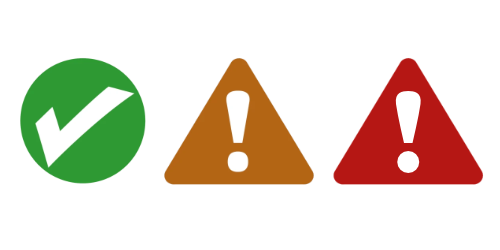 |
The orange or the red triangle show that there is a difference between the version on the tablet and the server.
Tap these symbols to open a small window.
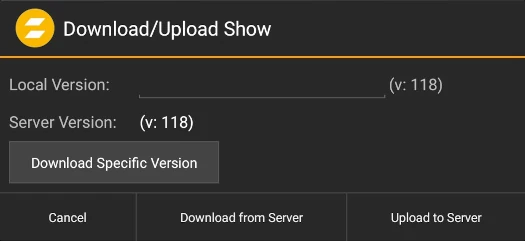 |
Local Version add or change the name of the file
Add or change the name of the showfile.
Upload to Server
Push the current file to the server.
Download from Server
A confirmation opens and asks to download the whole show or just some elements.
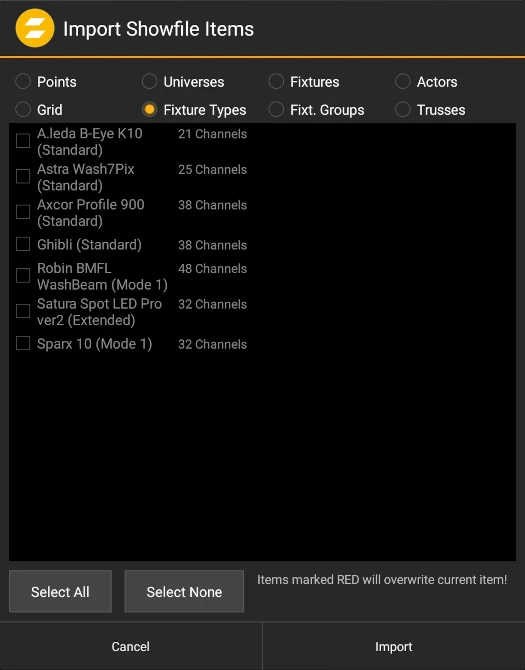
Tap to import only selected parts of the showfile. A dialog appears for choosing the elements to import. Possible dependencies to other entities are automatically selected, e.g. Fixture Types and Universes for selected Fixtures.
Download Specific Version
A dialog appears, listing all showfile versions on the server. Tap on an entry to select and download the desired version.
The showfile history can be cleaned up by selecting one or multiple entries using the checkboxes on the left side and deleting these entries by tapping the button and selecting . Individual entries can also be removed via a long-press on the entry and choosing from the context menu.
Warning
Deleting showfile entries will permanently remove them from the server. Ensure that important versions are downloaded and exported before removal.